1 Your practice2 Contact3 Calendar

About your practice

Which products are you interested in? Select all that apply
What software does your firm use? Select all that apply
Select your software
Document collection to ProConnect effortlessly & accurately!

Import Client docs to ProConnect —without retyping.

Bring every client document into one organized record—from the office kiosk, website, email, or text. AI Front Desk and CRM use prior returns and conversations to identify what is missing and follow up through the channels your firm chooses.

Preview the planned ProConnect workflow from approved client documents to preparer review. The browser connector is a pilot and is not available for production installation. This walkthrough shows the intended entry flow while end-to-end validation and release checks continue.

You control the follow-up. Your preparer controls approval, final review, and filing.

ito.intuit.com
ProConnect Client Top
Approved
in binder
Entering
in ProConnect
Approved source → ProConnect entry → preparer review.Walk through ProConnect with our team.
ProConnect walkthroughWatch TaxAutomate enter data in ProConnectClient documents, automated entry, and review.Book a demo to see it →

From approved documents to ProConnect: the planned workflow.

Bring document collection, source review, and browser entry into one preparation flow. The ProConnect connector remains a pilot pending production activation and end-to-end verification.

1

Gather every client document in one place.

Start with one complete client file. Documents can arrive through your office kiosk, website, email, phone, or text, and every reply and upload stays with the same client record. TaxAutomate’s AI Front Desk and CRM help your team get there: they compare what has arrived with the prior-year return, open requests, and past conversations to identify what is still missing. The AI can follow up automatically, but your team chooses the pace, timing, and channels—and can pause, change, or take over any conversation.

The goal is one complete client file. AI helps your team get there.

TaxAutomate bringing client documents and conversations from every approved channel into one client record
Every channel → one client recordAI helps identify and request what is missing
2

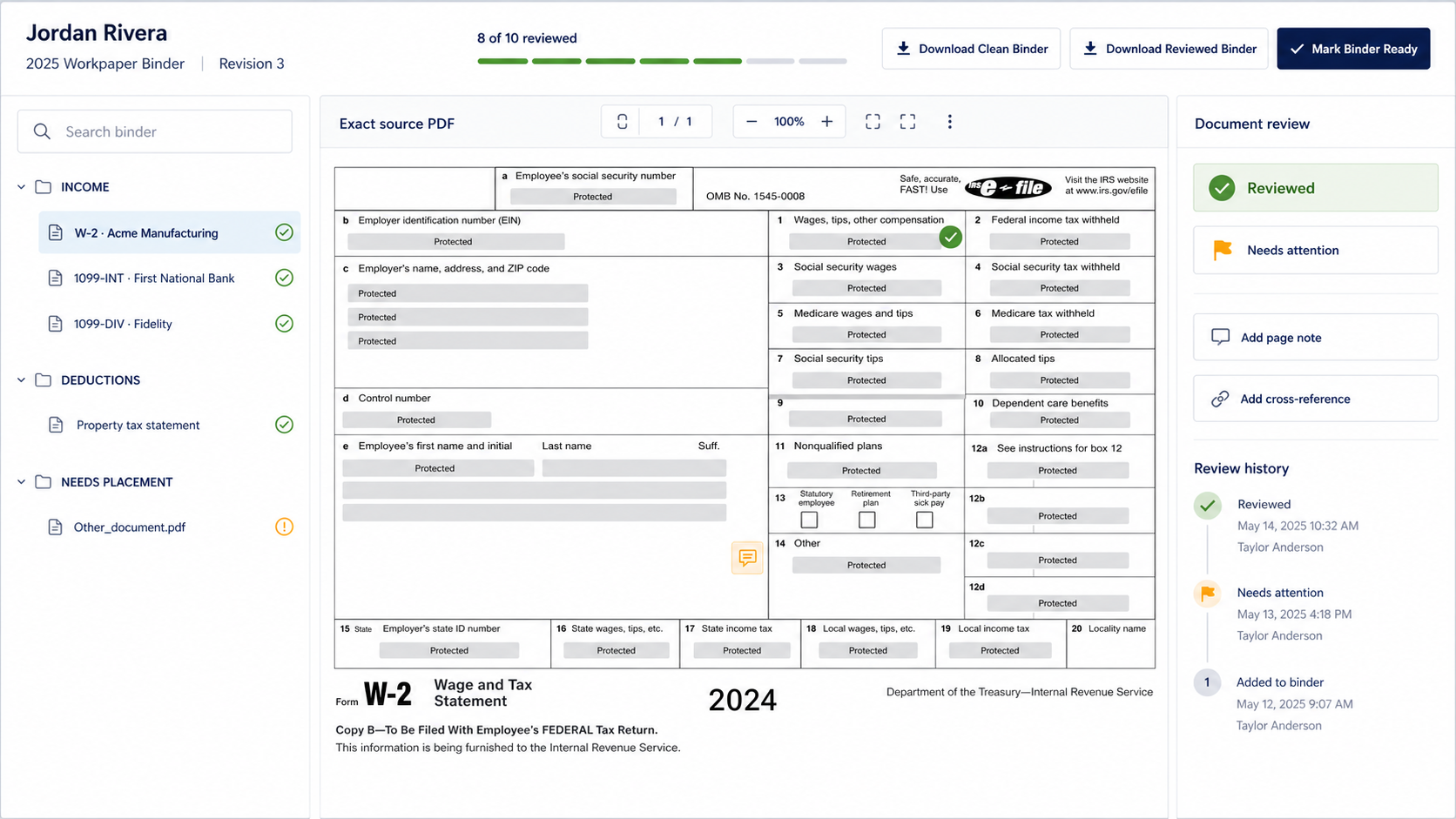
TaxAutomate turns the document mess into an indexed PDF workpaper.

As files arrive, the software identifies and organizes the source documents, groups related pages, and builds one labeled, bookmarked PDF binder. Prior-year context and open requests remain attached to the same client record. Your team can rename, reorder, or regroup documents before marking the binder ready for review.

The software organizes it. Your team controls the final binder.
Bookmarked TaxAutomate workpaper binder showing a full W-2 PDF page
Documents identified and groupedBookmarks make every source easy to find
3

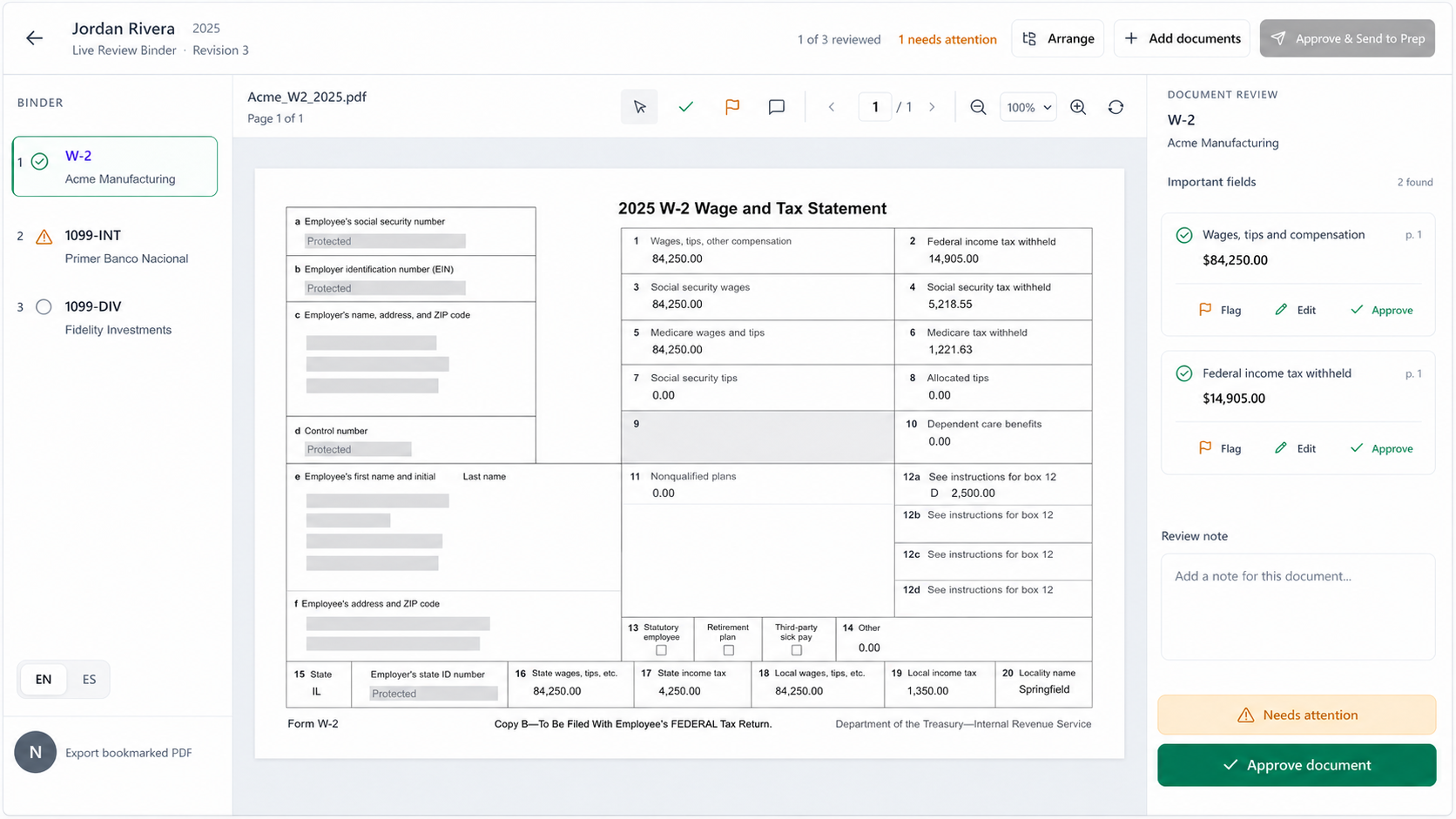
Self-check every value against the original PDF.

The split-screen review keeps the source document beside the extracted fields. Select a value and TaxAutomate brings its exact source area into focus. Your preparer can correct an OCR read, change a document classification, regroup pages, approve the value, or flag it.

Every approved value stays linked to its source.
TaxAutomate split-screen PDF review with extracted fields and source-area highlighting
Select a field → focus its sourceCorrect, regroup, approve, or flag
4

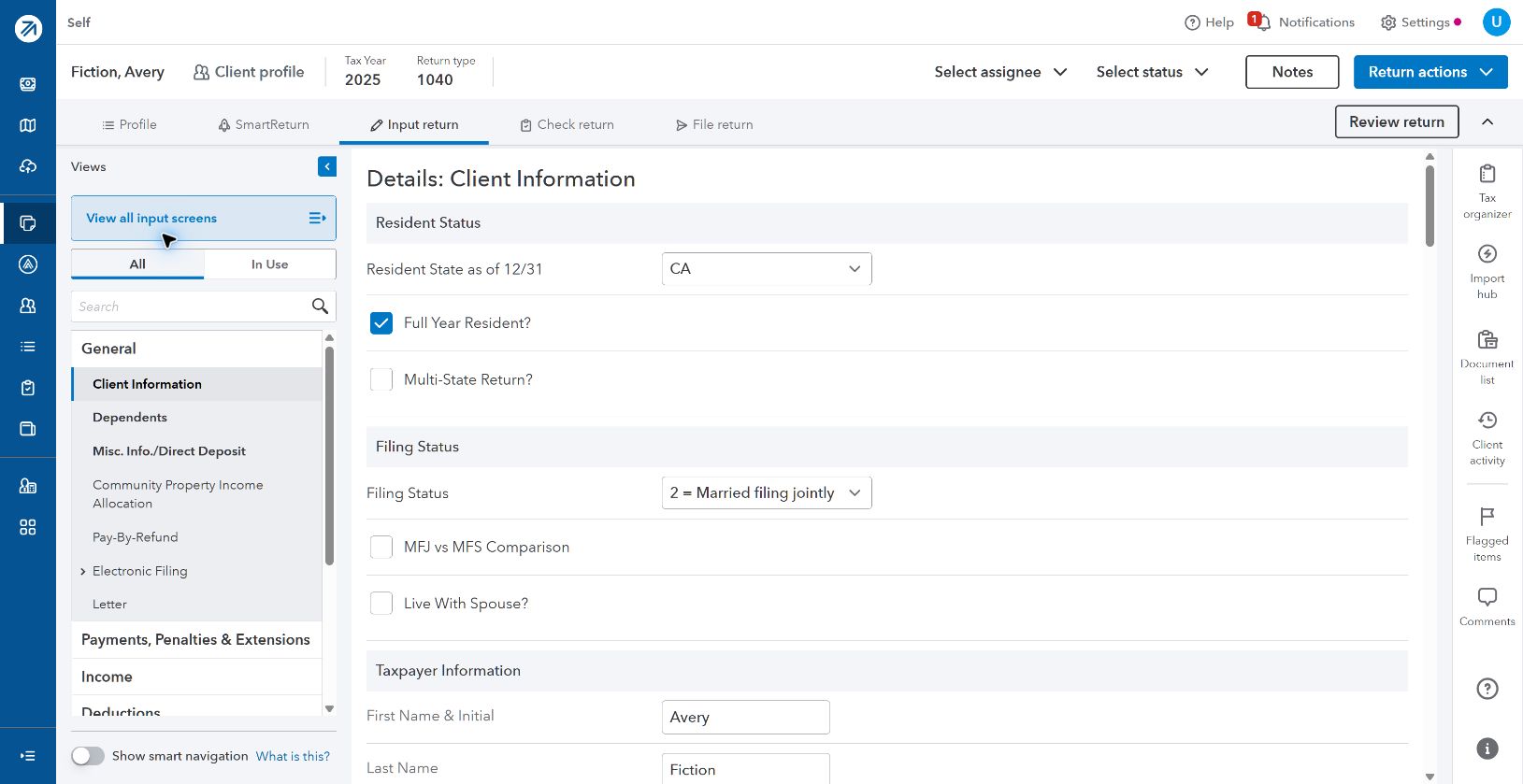
Preview the approved-source handoff to ProConnect.

The browser connector foundation is being validated for 2025 Form 1040 preparation. The walkthrough illustrates intended form entry; production installation is not available yet.

Review pilot availability and supported mappings with our team.
TaxAutomate source-linked values approved before ProConnect entry
Approved binder valuesProConnect approved data entry
5After ProConnect data entry

Your preparer verifies the entry and finishes the return.

Your preparer compares entered values with the approved source, resolves differences, reviews calculations and diagnostics, and controls final review and filing.

Your preparer confirms the entry

Compare the approved source with the entered ProConnect field and confirm that it is correct.

×

Your preparer resolves discrepancies

Correct missing or different values and resolve ProConnect diagnostics or unsupported items.

Your professional finishes the return

Make the final tax decisions, approve the completed return, and control filing.

Automation with firm control

TaxAutomate does the work. Your professionals make the decisions.

TaxAutomate brings each client’s documents into one record. AI Front Desk and CRM help identify and request what is missing, and the software organizes the file. The ProConnect browser handoff remains in pilot validation. Your preparer verifies the ProConnect entry, resolves exceptions, reviews diagnostics, applies tax judgment, completes final review, and controls filing.

1
You control the AI’s pace and channels.Choose when it follows up, where it communicates, and when a staff member takes over.
2
You control every approval and exception.Correct, regroup, approve, reject, or stop work before data enters ProConnect.
3
You control verification, final review, and filing.Your preparer verifies the entry and your authorized professional controls the completed return.
Where the automation runs

A browser connector pilot for ProConnect.

The planned workflow runs in your signed-in ProConnect browser session. Production activation and live end-to-end verification are required before release.

ProConnect browser connectorPilot
2025 Form 1040 workflowIn validation
Production installationNot available yet
End-to-end verificationRequired before release
Final review and filingFirm controlled
Clear responsibilities

How ProConnect data entry automation works—and what your team controls.

TaxAutomate performs the repetitive work. Your firm sets the rules and retains every professional decision.

How are client documents gathered into one place?

Documents received through your office kiosk, website, email, phone, or text stay with one client record. AI Front Desk and CRM then help your team identify and request what is still missing.

How does the AI know which documents are missing?

AI Front Desk and CRM use the client record, prior return, documents already received, open requests, and conversation history to maintain a client-specific checklist. The checklist updates as replies and uploads arrive.

Can our team control the follow-up?

Yes. Your team chooses the cadence, timing, and allowed channels, including office kiosk, website, email, phone, and text. Staff can pause, change, or take over a conversation at any time.

Do extracted numbers go straight into ProConnect?

No. TaxAutomate organizes and extracts the information, but your preparer reviews the source and approves the supported values first.

What if someone changes a source document?

TaxAutomate detects that the binder revision changed. The old run cannot move forward; the current documents must be reviewed and approved again.

Who makes the final tax decisions and files?

Your authorized tax professional does. TaxAutomate performs supported automation, but it does not verify the ProConnect entry, exercise tax judgment, complete final review, or file the return for your firm.

How does TaxAutomate connect to ProConnect?

A browser connector pilot is being developed for the firm-authorized ProConnect session. Production installation remains unavailable pending activation and live end-to-end verification.

Who controls the ProConnect session and filing?

Your authorized preparer controls access, verifies the result, and makes the final tax and filing decisions.

Is the ProConnect connector ready to install?

Not yet. It is a browser connector pilot for 2025 Form 1040 preparation. Production activation and live end-to-end verification are required before release; the walkthrough illustrates the intended workflow.

See the unified workflow

Book a demo to watch TaxAutomate do the work.

Walk through the planned ProConnect handoff and discuss pilot availability and supported mappings with our team.

Gather every client document in one recordReview the bookmarked PDF binderWatch the ProConnect handoffSee preparer verificationKeep final review and filing with your firm