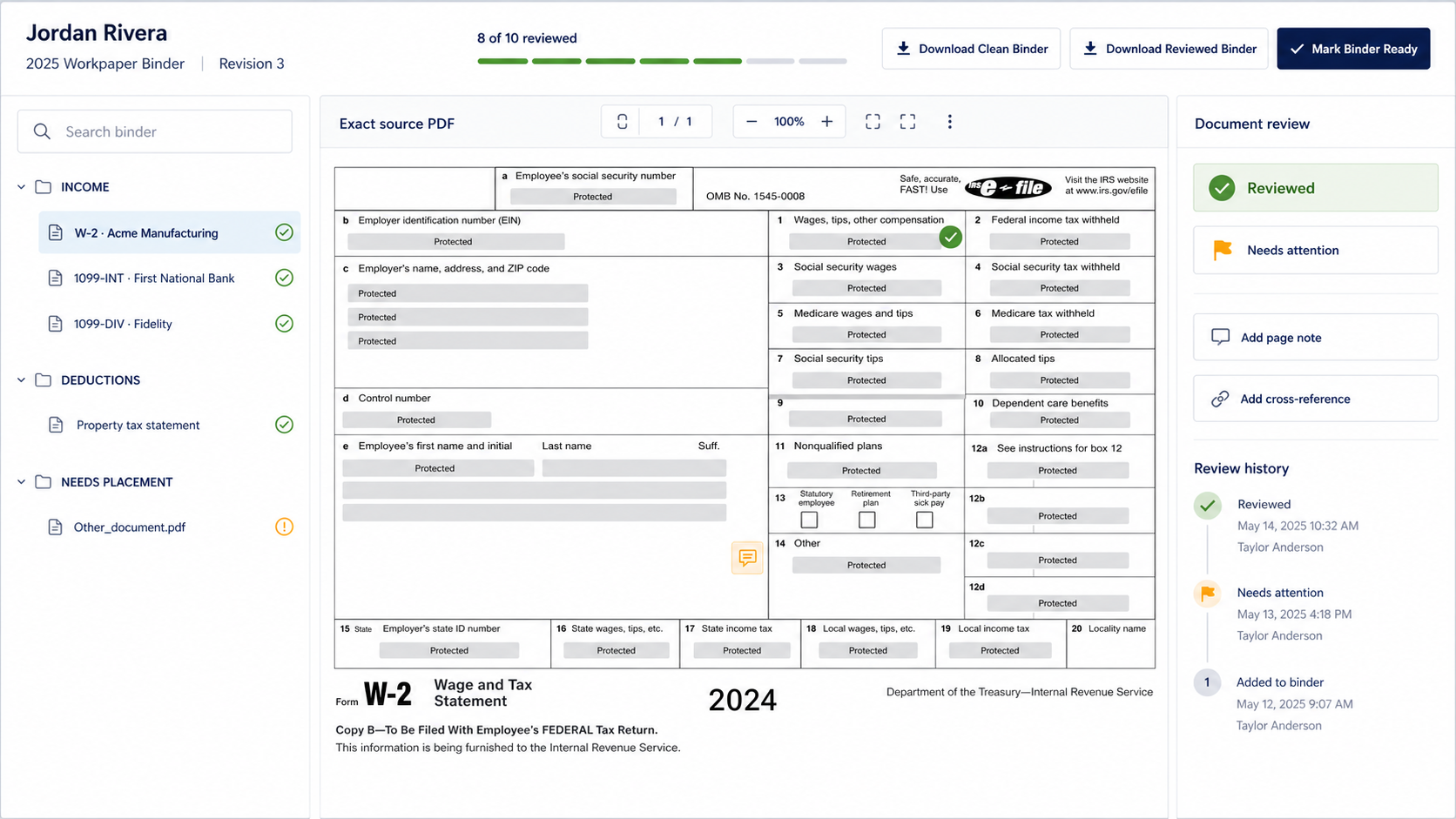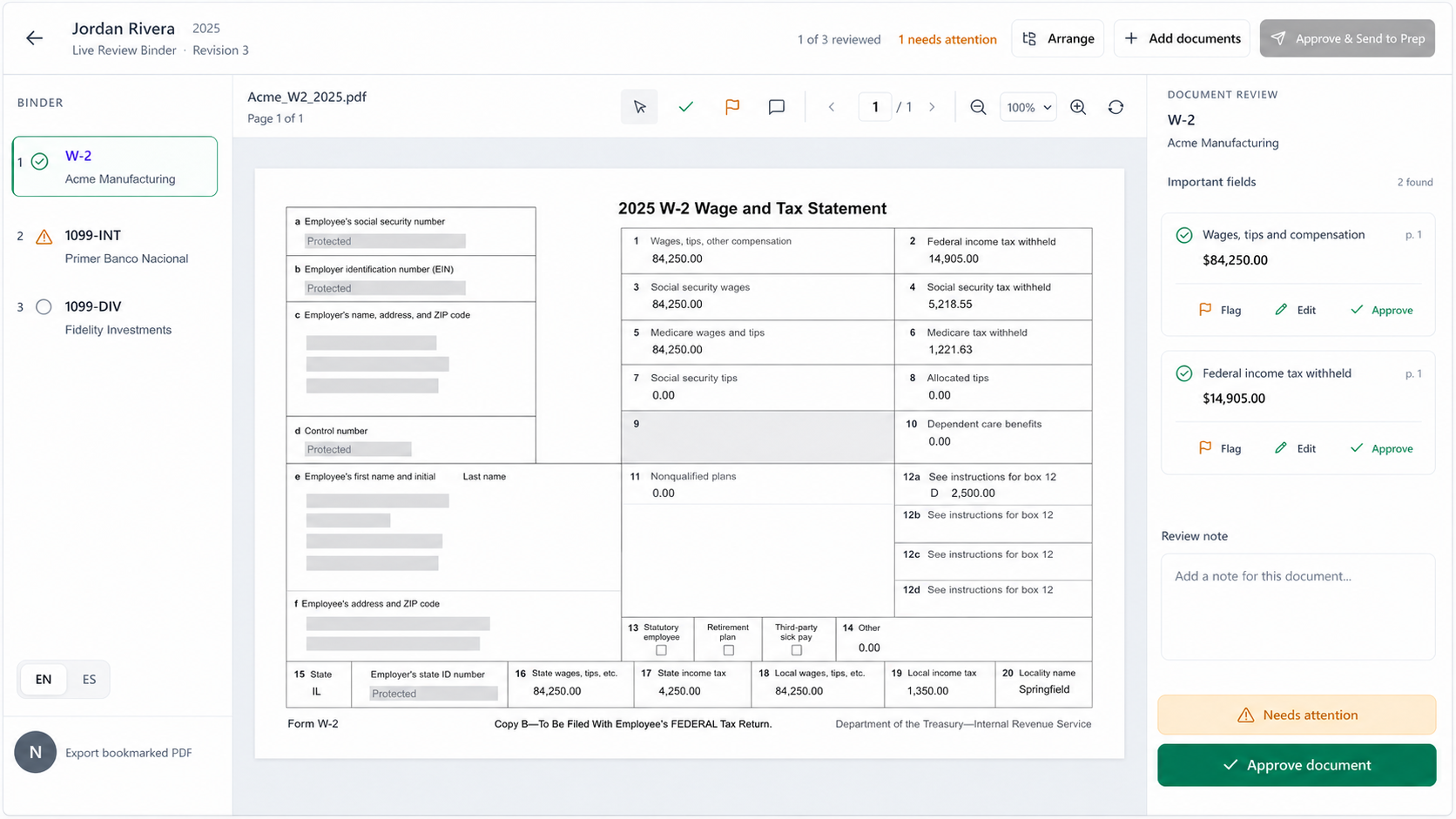
TaxAutomate + Drake Tax

The return gets typed into Drake. You watch it happen.

Other tools push data at Drake and disappear. TaxAutomate prepares the return inside your real Drake screens — form by form, on your firm's own workstation — then carries the same client record through review, e-signature, invoicing, payment, and follow-up.

Your preparer reviews and approves every return in Drake.
1040 + 1065prepared in Drake 28+real Drake screens 100%of entry visible 0credentials leave your workstation
One connected Drake workflow

Six steps. One client record.

A tax return does not begin when a preparer opens Drake, and it does not end at diagnostics. Every step around Drake stays connected.

01

Capture & manage the client

Inquiries, appointments, conversations, services, deadlines, and engagement details begin in the TaxAutomate CRM — one working client record from the first interaction.

02

Client Portal, Mobile App & CRM

Clients complete intake, answer requests, upload documents, message the firm, and see their next action in one mobile-ready place.

Explore the Client App + CRM →
04

Professional review in Drake

Your preparer opens the completed work in Drake, resolves review items, runs diagnostics, and controls approval and filing.

05

E-signature, invoice & payment

After review, the client reviews delivery documents, completes e-signatures, views the invoice, and pays — in the Mobile App.

06

Carry the relationship forward

Status, documents, signatures, invoices, and payments stay on the client timeline — ready for notices, planning, extensions, and next year.

The honest comparison

Getting data into Drake is the middle of the engagement — not the end of it.

Document-to-Drake exporters are useful. But when the data lands, the client still has to be chased, the return reviewed, the e-signature collected, the invoice sent, and the payment reconciled.

Engagement stepExport toolsTaxAutomate
Read source documents, build a workpaper
Push data into DrakeTyped into real Drake screens, visible form by form
Client intake, requests, and document chaseClient App + CRM
Live prep queue with pause, cancel, review flags
E-signature after preparer approvalIn the Client App
Invoice, payment, and reconciliation
Follow-up, notices, next-year continuitySame client record
The return closes — and so does everything around it, on one client record.
Individual returns

It prepares the return—not just a handful of boxes.

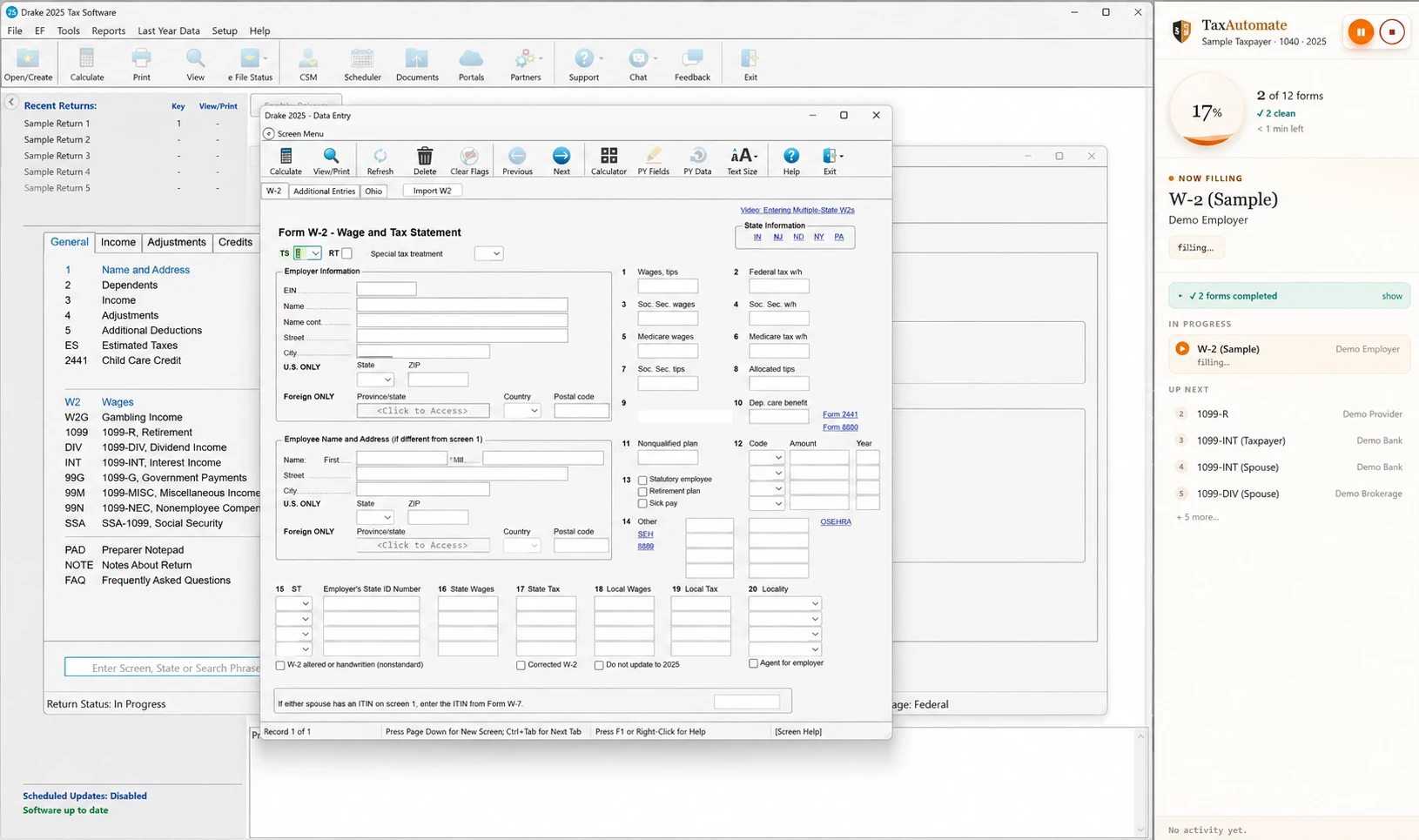
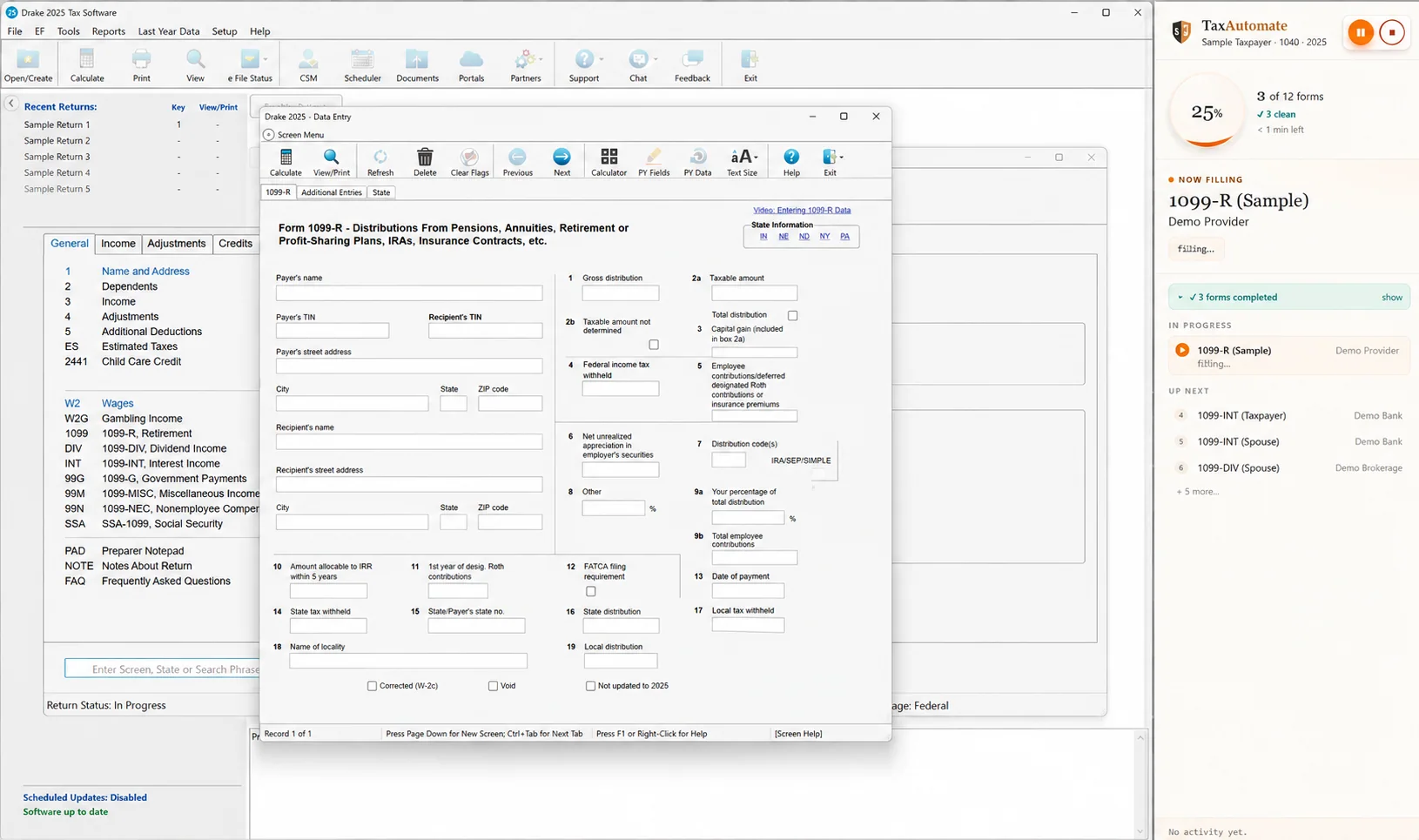
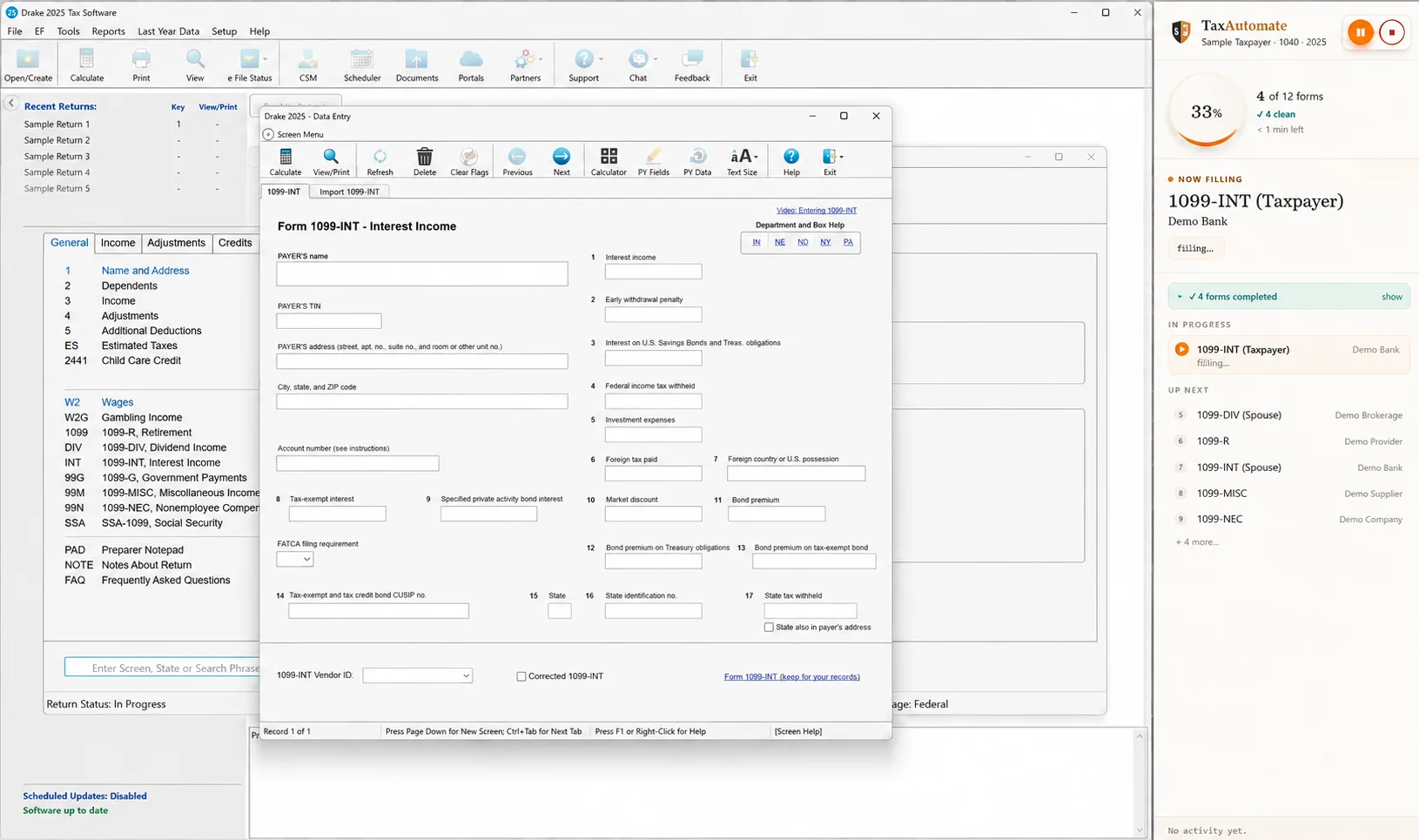
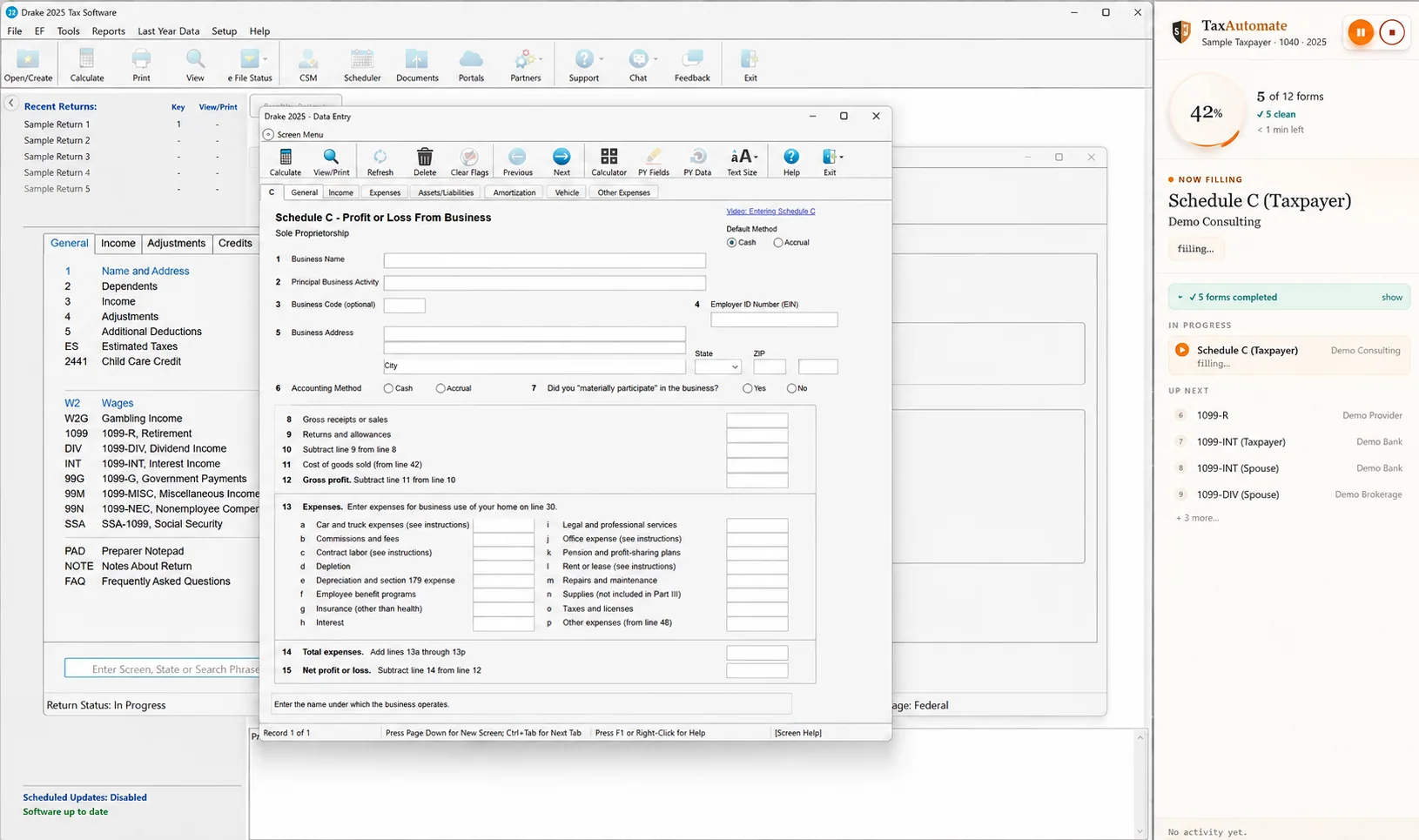
The individual workflow moves through the Drake return while the TaxAutomate panel shows what is complete, what is running, what comes next, and what needs the preparer's attention. The video is a real, narrated run — not a mockup.

  • Taxpayer, spouse, filing, address, and dependent information
  • W-2, 1099, SSA-1099, interest, dividend, and retirement income
  • Schedule C, Schedule E, depreciation, capital transactions, and K-1 work
  • Form-level progress and an end-of-run preparation summary
Watch the individual return workflow
Narrated 1040 preparation workflowDrake Tax · Live form progress · Firm review
Narrated 1065 preparation workflowDrake Tax · Live form progress · Firm review
Partnership returns

Business-return preparation moves through Drake the same way.

TaxAutomate opens the partnership return, works through prepared sections and schedules, and keeps the firm informed as every part of the return moves forward.

  • General information, income, deductions, tax, and payments
  • Schedule B and B-1 ownership information
  • Balance sheet, M-1 reconciliation, and partners' capital
  • Cost of goods sold, rental, depreciation, asset sales, and extensions
The working ledger

Real Drake screens. Real return workflows.

The integration is built around the screens used during return preparation, including flat forms, detail grids, multi-tab worksheets, and dependent records.

Individual-return examples

  • Name and address
  • Dependents
  • W-2
  • 1099-INT
  • 1099-DIV
  • 1099-R
  • 1099-NEC/MISC/G
  • SSA-1099
  • Schedule C
  • Schedule E
  • Form 4562
  • Form 8949
  • Schedule A
  • K-1 worksheets

Partnership-return examples

  • General information
  • Income
  • Deductions
  • Schedule B
  • Schedule B-1
  • Schedule L
  • Schedule M-1
  • Schedule M-2
  • Form 1125-A
  • Form 8825
  • Form 4562
  • Form 4797
  • Form 8949
  • Form 7004
From Drake firms

What tax professionals say about the Drake workflow.

The first time I watched it open Drake and start typing the W-2s form by form, I just sat there. It does the entry the way I would — and I can see every screen it touches before I review.
MelinaCertified Tax Professional · Brightside Tax & Accounting
Data entry was never the whole problem — the chasing was. Now intake, documents, the return, signatures, and the invoice sit on one client record instead of five different tools.
WilliamManaging Partner · Whitfield Tax Group
I stay in control the entire run. The queue shows what's done and what's flagged for me, and I can pause it from my desk. Review still happens in Drake, where it should.
UmaEnrolled Agent · ClearLedger Tax Advisors
The control room

Automation you can watch, pause, and prove.

The Drake connector is not an invisible background process. Staff see every form in the queue, control the machine lane, and can stop or revoke access at any moment — while credentials never leave the workstation.

Live form queue

See completed forms, the active form, upcoming work, review items, and overall progress.

Pause and cancel

Pause polling, cancel queued work, or stop a running return from the machine or dashboard.

Paired machine control

Enroll the workstation with a short-lived code, monitor status, revoke from TaxAutomate.

Local credentials and backup

Drake credentials stay locally protected by Windows encryption. Files back up before overwrite.

Getting started

Connect Drake in four steps.

The connector runs on the firm's Windows workstation and links that machine to the firm's TaxAutomate account.

1

Activate Drake

Select Drake as the firm's tax-preparation engine in TaxAutomate.

2

Install the connector

Install the TaxAutomate Drake connector on the Windows machine that runs Drake.

3

Pair the workstation

Use the short-lived enrollment code from the dashboard to pair the machine.

4

Prepare and review

Start the return from TaxAutomate, watch it progress, and review the work in Drake.

Straight answers

Questions from Drake firms.

What the connection does, how it runs, and where your preparer remains in control.

Does TaxAutomate integrate with Drake Tax?

Yes. TaxAutomate uses a paired connector on your firm's Windows workstation to open Drake, enter prepared return data, report progress, and return the completed work to your preparer for review.

How is TaxAutomate different from document-to-Drake export tools?

Export tools stop when data lands in Drake. TaxAutomate runs the engagement around Drake as well: CRM, client mobile intake, document requests, visible form-by-form preparation, professional review, e-signature, invoicing, payment, and follow-up stay connected to one client record instead of scattering across separate tools.

Does TaxAutomate replace Drake?

No. Drake remains your firm's tax-preparation software. TaxAutomate connects the workflow around it—CRM, mobile intake, documents, preparation progress, professional review, signatures, invoicing, payment, and follow-up.

What happens before a return reaches Drake?

The TaxAutomate Client App and CRM coordinate the relationship, intake, requests, documents, messages, appointments, and engagement context. When preparation begins, the firm starts with the client information and history already connected to the engagement.

What happens after the preparer reviews the return?

After professional review and approval, the workflow moves into client delivery, required e-signatures, invoicing, payment, and follow-up. Those actions remain connected to the same client record rather than becoming a separate end-of-engagement process.

What return work can TaxAutomate prepare in Drake?

The current Drake workflow includes individual 1040 and partnership 1065 preparation across identity, income, deductions, dependents, detail grids, multi-tab schedules, depreciation, K-1, rental, capital transaction, and business-return screens shown on this page.

Does TaxAutomate enter data directly into Drake?

Yes. The primary workflow enters prepared values through the real Drake interface. Completed Drake result files can also be delivered to a paired machine with backup-before-overwrite protection.

Can the preparer see what TaxAutomate is doing?

Yes. The TaxAutomate panel shows the current form, completed forms, items needing review, upcoming work, overall progress, and machine controls while the return is being prepared.

Can we pause or stop a return?

Yes. The connector supports pause, cancel, and stop controls. Staff can also manage queued work from the local connector window and the TaxAutomate dashboard.

Does TaxAutomate store our Drake password?

Your Drake credential is entered and encrypted locally on the Drake workstation using Windows protection. It is not sent to or stored on TaxAutomate's servers.

Does the Drake workstation need to remain signed in?

Yes. Because the connector operates the real Drake desktop interface, the workstation needs an interactive, signed-in Windows session while return preparation is running.

Does TaxAutomate file the return?

No. Your authorized tax professional reviews the prepared return in Drake and controls diagnostics, corrections, approval, signing, client delivery, and filing.

Bring a real engagement

Watch your own Drake workflow run end to end.

Bring one of your firm's real Drake engagements. We'll show how the client moves from CRM and mobile intake through visible preparation in Drake, review, e-signature, invoicing, payment, and connected follow-up.

See the Client App, CRM, and Drake work togetherWalk through individual and partnership preparation liveMap signatures, billing, payment, and follow-up to one record